Project scanners
Project Scanners allow Snapr to automatically run analysis jobs on your repositories. These scanners help keep your projects clean, secure, and aligned with your organization’s standards. Once configured, a scanner monitors your repository and performs automated checks, creating issues depending on the type of scanner.
Scanners are fully customizable and can be tailored to different use cases, such as code quality validation, dependency audits, policy enforcement, or detecting stale resources.
How Scanners Work
A Project Scanner is an AI-powered analysis workflow that evaluates a repository using the instructions you provide. Instead of relying on static rules, the scanner interprets those instructions, understands the project’s structure and content, and identifies issues that should be surfaced to the development team.
At a high level, every scanner follows this general workflow:
- You configure the scanner in the Snapr Admin Panel, choosing:
- The scanner template to use. A scanner template defines the behavior and identity the AI will adopt when analyzing your repository.
- The repostory to scan
- The scan mode:
- Run once: TThe scanner will execute a single time for the selected repository.
- Scheduled: You define a schedule, and the scanner will run automatically based on that interval.
- Snapr executes the scanner according to the chosen mode, either as a one-time job or as a recurring scheduled job.
- The scanner analyzes the repository, applies the instructions defined by the template, and determines whether any issues need to be reported.
- If applicable, the scanner creates a GitHub Issue in the repository with the findings produced by the AI.
Configuring a Scanner
All project scanners must be configured through the Snapr Admin Panel. Snapr does not read scanner settings from repository files or external configurations, the entire setup is managed centrally from the UI.
To create a new scanner, go to the Scanners tab and click the New Scanner button. This will take you to the configuration view, where you can define all the parameters for your scanner.

TBD once created it can be listed.
Configuring a Scanner Template
A Scanner Template defines the structure, behavior, and rules that Snapr’s AI will follow when analyzing a repository. Templates act as reusable blueprints for scanners, allowing you to standardize how code is evaluated across multiple projects.
To create a new template, in the Scanners tab, click New Template, which opens the configuration view shown below.
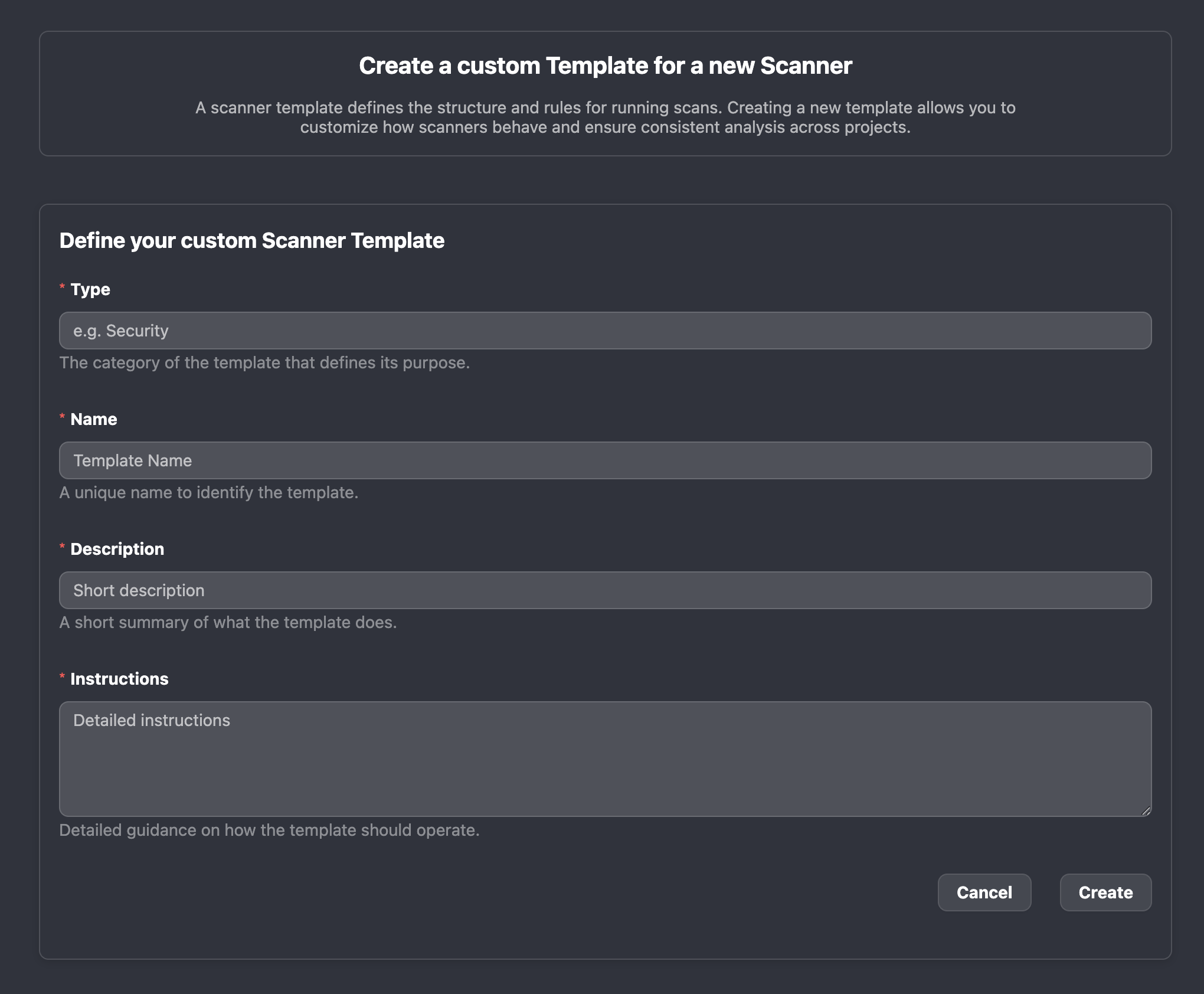
As shown in the image, the Scanner Template configuration includes several values that Snapr will use to execute the template and organize it within the system:
- Type: A category that describes the purpose or domain of the template.
- Name: A unique identifier for your template. This name appears when selecting the template while configuring scanners.
- Description: A short summary explaining what the template does. This is displayed in the scanner creation form to help administrators understand its purpose.
- Instructions: The core of the template. This is where you define the detailed AI instructions that describe how the scanner should behave when analyzing a repository.
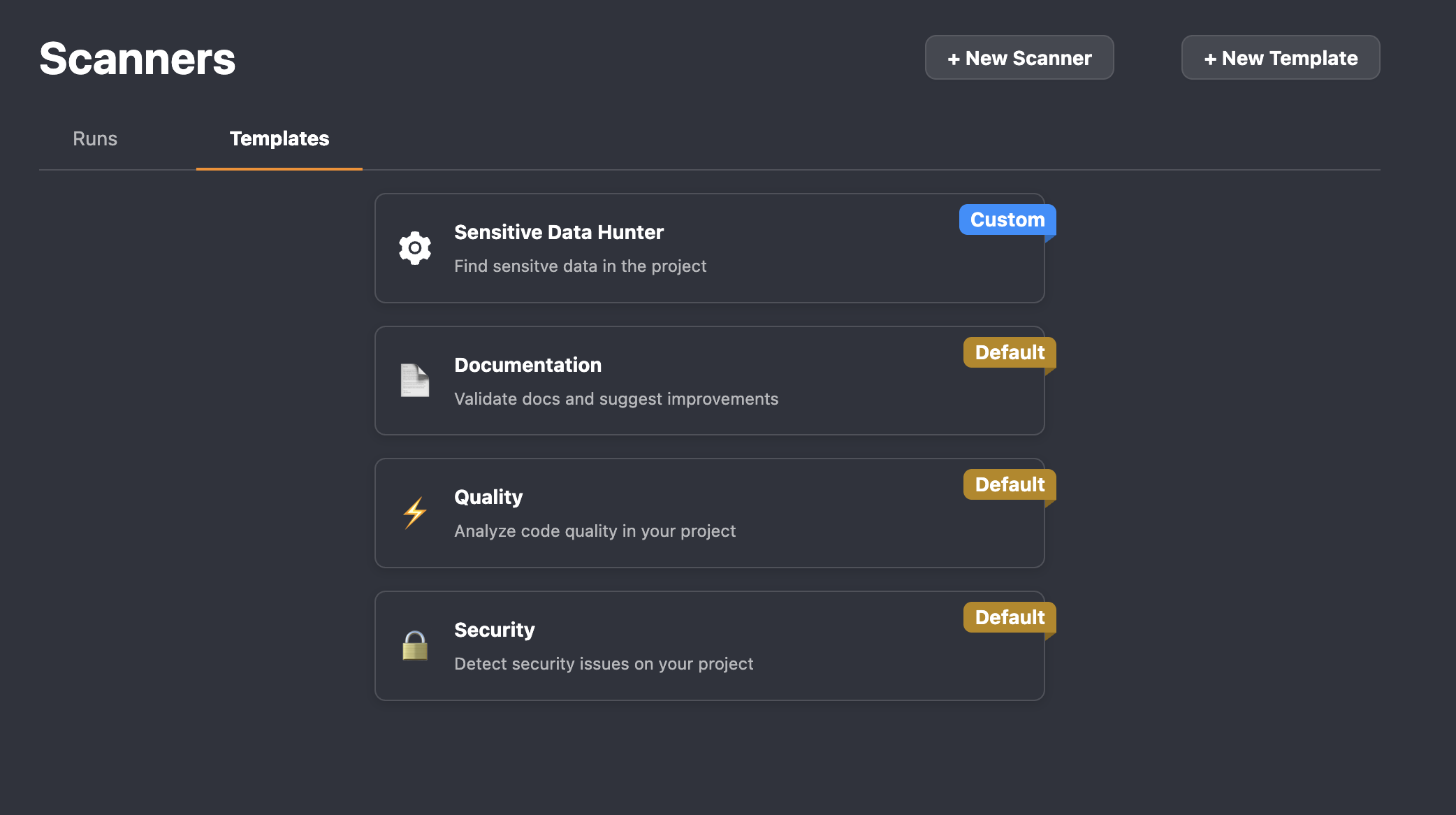
Once created, it will be listed as one of the available Scanner Templates and can be selected when configuring a scanner. In the following example, a new Scanner Template “Sensitive Data Hunter” has been created, specializing in identifying and reporting the presence of sensitive data.